
Introduction
To develop applications, programmers use an Integrated Development Environment (IDE) to code, compile, run and debug their programs. In this lesson, we briefly discuss the development environments that are useful for coding, testing, and running our Swift programs.
Xcode
Xcode, developed by Apple itself, is undoubtedly the most important development environment for Swift programs. Xcode is only available for macOS. Xcode is completely free to download and use.
Xcode can be installed easily and securely from the Mac App Store. After downloading and installing, Xcode will be available in the Applications folder of your macOS system.
Xcode is designed for professional developers. As a result, the Xcode integrated development environment can sometimes be quite overwhelming.
In 2016, Apple released Swift Playground with the goal of making Swift more accessible to beginners. Swift Playground is part of Xcode. Swift Playground is fully integrated into Xcode and makes the entire Swift language available. Only the development environment is much simpler.
In this series of lessons, we will use Swift Playground to develop and test our programs.
To start Swift Playground in Xcode, start Xcode and immediately select File -> New -> Playground. On the next screen, you will be asked for which platform (iOS or macOS) you want to develop and which playground (blank, game, map, single view) you want to use as a basis (select blank).
Next, you are asked for a name for the program and the location where the program should be saved. After you have answered these questions, your programming environment will start:
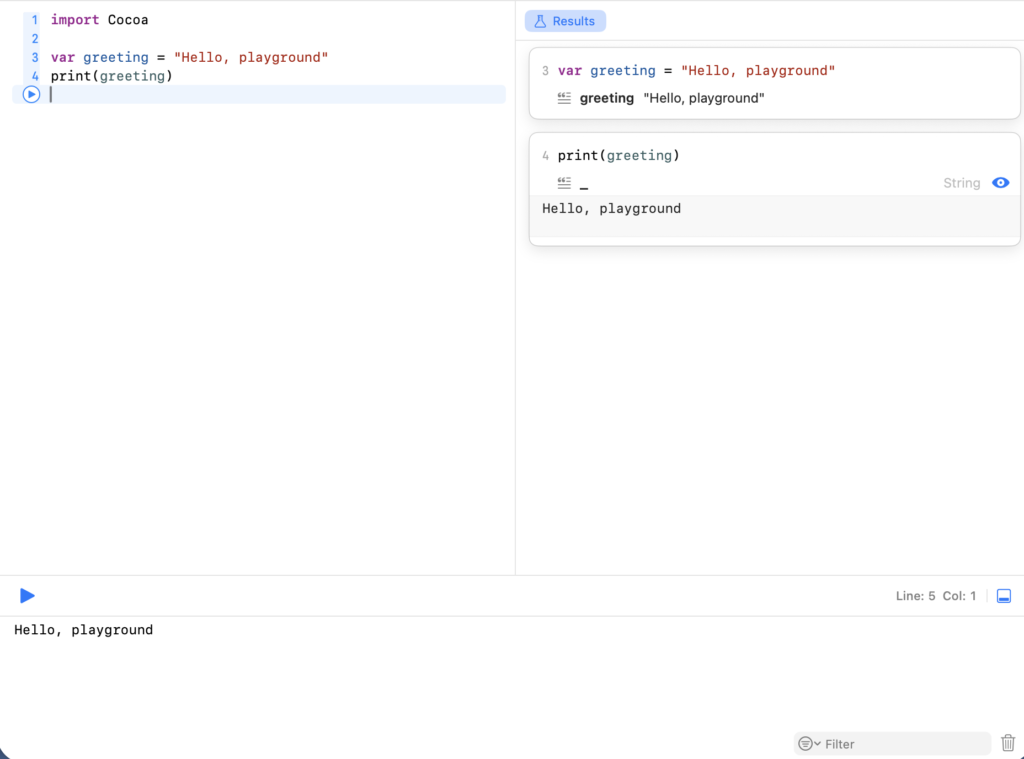
Swift Playground app
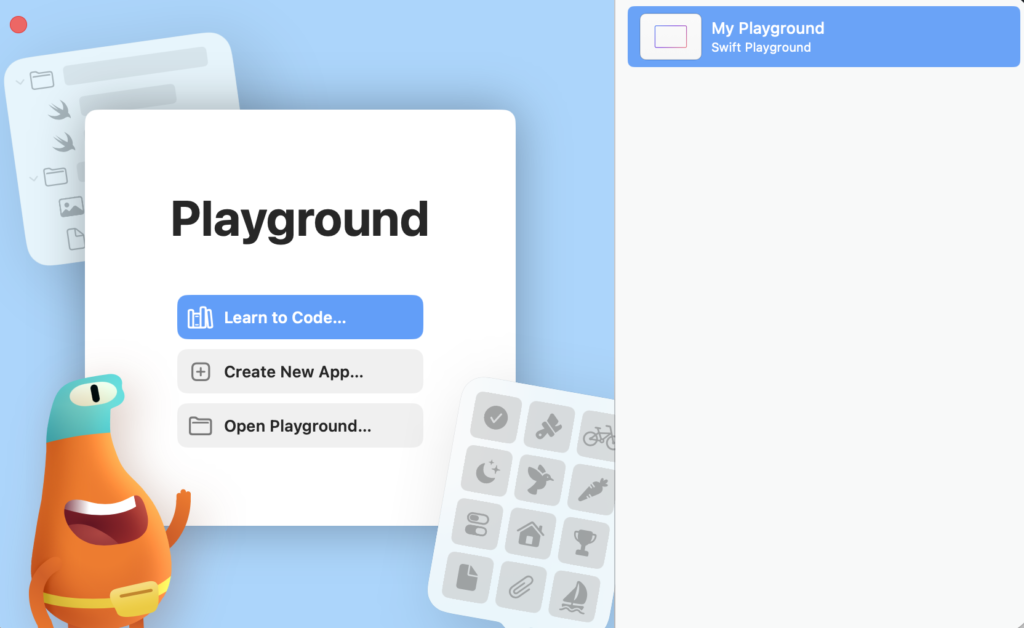
There is also a free, standalone app called Swift Playground available in the macOS and iPadOS app stores. The app teaches you how to use Swift statements to build your own apps with the Swift User Interface (SwiftUI). The built-in lessons in the “Learn to code” section are very informative, even for experienced programmers. I’m sure you’ll find yourself coming back to these great Swift lessons time and time again.
To enter the program snippets presented in the following lessons, you can select File->New Book in the main app menu. This selection creates a blank page on which you can enter your program statements. Swift Playground gives you immediate feedback on every instruction you enter into your program and continuously shows you the progress of the program.